Firmware Update
After installing the Ndigo device driver, a firmware update tool is
available, which is performed by choosing NdigoFirmwareGUI.exe.
After invoking the application a window as shown in Figure 28 will appear.
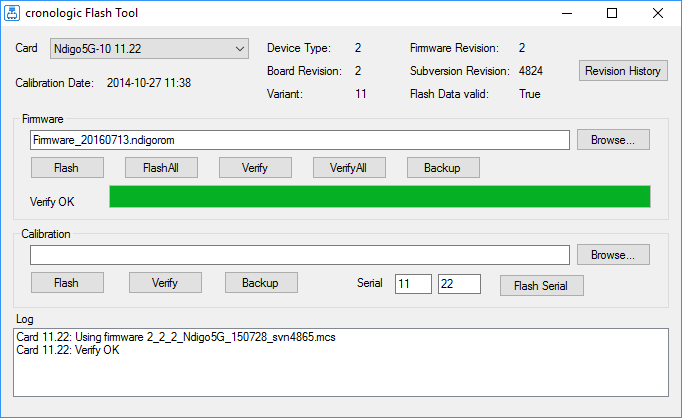
Figure 28 Screenshot of NdigoFirmwareGUI.exe.
The tool can be used for updating the firmware and to create a backup of the on-board calibration data of a particular Ndigo5G unit. If several boards are present, the one which is going to be used can be selected in the upper left corner of the window.
Pressing the “Backup” buttons a backup of the firmware or the calibration data will be created, respectively.
In order to perform a firmware update, chose appropriate “.ndigorom”-file by pressing “Browse”. The file contains the firmware PROMs for all boards of the Ndigo5G product line.
By pressing “Flash” the firmware is written to the board.
“Verify” can be used to compare the data stored inside the PROM to the one inside a file.
Attention
The new firmware will only be used after a power cycle, i.e. after switching the PC (or Ndigo crate) off and back on.
A simple reboot is not sufficient.
Therefore, the information shown in the upper half of the application window does not change right after flashing a new firmware.
After flashing and shutting the PC or the crate off and on again it is recommended to perform a window calibration. The tool “WindowCalibration” is provided for that purpose within the driver installation.
The omission of the calibration process leads to longer execution times of applications using that firmware, since the calibration is performed then instead.